


Posted: October 28th, 2025
How to Avoid the Trap of Referral Spam
Once you have Google Analytics up and running on your website, it’s a good, free tool for all kinds of useful data and metrics about your website visitors. There is a bit of a learning curve for understanding how to view the Analytics, but once you get past that hurdle, you can usually quickly check in to see some key stats.
One of those key stats is Traffic Acquisition: session source / medium.
The biggest reason to check this often (I recommend at least once a month), is to see where traffic is coming from to get to your website. Typically, the #1 “source” will be (direct) / (none). This is kind of a catch all “bucket” that Google puts any visits that couldn’t be tracked, including people typing your URL directly into their browser bar (other reasons can be email links, links from PDF files, links from bookmarks, links from a payment gateway such as PayPal, etc.)
Sometimes the next line may be google / organic. It’s great if this is the case because it means people are finding your site in organic Google searches.
Beyond that, it starts to list all the other sources such as social media platforms and other sites where your link might be (what’s known as a “backlink”).
So here’s where Referral Spam usually shows up. Sadly, it’s a common issue in Google Analytics. In the screenshot below in the light red highlighting, you’ll see a url / referral (I don’t want to type it out and give them even more traffic!).
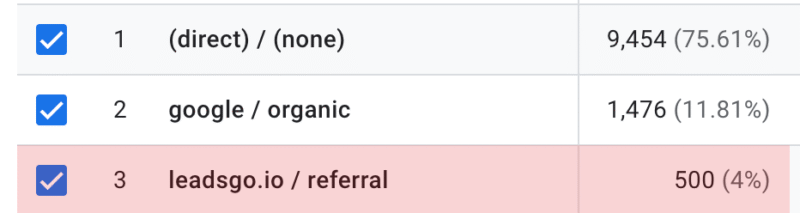
The URL actually forwards to a very slick website that promises to get you thousands of geo targeted “organic” traffic. This is not legit traffic, so don’t be fooled if you stumble on a site like this.
What’s super annoying and frankly really sus business practices is that some companies use this tactic to basically scam you into useless services they’re selling, such as “get thousands of geo targeted traffic to your site”.
The important thing to remember is these are FAKE referrals injected into your analytics data. They are NOT real site visitors. This is basically advertising spam.
Odds are, if you don’t recognize the site name as a well-known site or a site you KNOW you’ve got a link to your website on, it’s likely spam.
They can be safely ignored, but they inflate your Google Analytics.
A couple of things NOT to do:
- If you’ve already visited their site, don’t visit it again.
- Don’t try to contact them to remove your URL – there’s nothing to remove; they’re not actually linking to you.
How do they get your analytics data?
Usually it’s just scraping website code for Google Analytics IDs (GTAG). But some have random ID generators as well or use lists they get from scammers that have actual IDs on them.
So the whole scheme is basically this:
- They get your tracking ID (from your source code or by compiling randomly generated tracking IDs that turn out to be real)
- They send fake referral data to Google Analytics using your ID
- You see their domain in your reports
- You get curious and visit their site
- They get real traffic and potential customers
TBH, I really loathe stuff like this, which is why I do my best to shine a light on it. There is zero value to your business by paying a company that claims to get you traffic to your site (even if they claim it’s “geo targeted”), or worse, backlinks, which has the potential to ding your overall SEO read my post about that here.
Is there anything that can be done about this?
You’re not going to get penalized at all for referral spam like this, so that’s the good news. But like I mentioned, it can mess up the accuracy of your Analytics when it comes to referrals. So there is a way in Google Analytics (GA4) to block it, but it will need to be updated each time you catch more of it.
Setting up “Unwanted Referrals” in GA4:
- Go to Admin by clicking on the gear icon in the bottom left corner of the screen/li>
- Click on Data Collection and Modification and then click on Data Streams/li>
- On the next screen, click on your web data stream/li>
- Scroll down and click Configure tag settings/li>
- Click on the “Show More”/li>
- Click on List unwanted referrals/li>
- Choose the “referral domain contains” selection (should be the default) and add the spammy URL (just the URL, you don’t have to put in https://)/li>
- Hit Save (in the top right of the screen)/li>
- Repeat this process when you find more/li>
This would essentially be a “best practice” move to ensure that your Google Analytics data is as accurate as it can be.